

Tray Icon Manager · Online manual
Manual
Install, configure and use Tray Icon Manager on Windows.
Overview
Tray Icon Manager is a small Windows utility that keeps newly registered notification area (system tray) icons visible instead of letting Windows hide them. It watches for new icons and marks each one as always show the first time it appears. Icons you have already customized in Windows Settings are never changed.
The same TrayIconManager.exe can run as a normal desktop app with its own tray icon, or as a background Windows service. There is no separate installer.
Requirements
- Windows 10 or Windows 11, 64-bit.
- Administrator approval is needed only to install or remove the service. Normal app use requires no special privileges.
- The app is self-contained; no .NET runtime or Visual C++ Redistributable is required.
Getting started
- Download the ZIP and extract
TrayIconManager.exeanywhere you like. - Double-click the executable. A Tray Icon Manager icon appears in the notification area; no administrator prompt is shown.
- Optional: put a shortcut to the executable in your Startup folder. Press Win+R, enter
shell:startup, then place the shortcut in the folder that opens.
If the app icon is not visible, open the taskbar overflow area (the up arrow). After the app has run, you can drag its icon onto the taskbar.
The tray menu
Right-click the Tray Icon Manager icon to open its menu.
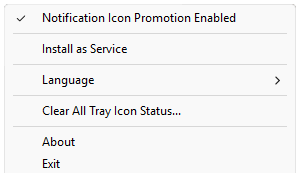
- Notification Icon Promotion Enabled
- Checked by default. Uncheck it to pause promotion without closing the app.
- Install as Service / Remove Service
- Registers or unregisters the background service. Administrator approval is required; the menu shows the action that currently applies.
- Language
- Opens the language submenu.
- Clear All Tray Icon Status...
- Resets every saved show/hide setting for the current Windows account.
- About
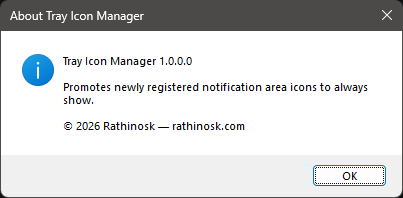
- Shows version information.
- Exit
- Closes the tray app. An installed service keeps running independently.
Icon promotion
While promotion is enabled, a notification icon that appears for the first time is set to always show. The check mark next to Notification Icon Promotion Enabled shows the current state, which is remembered between runs.
Icons you have already set to hidden or visible are never overridden. Uncheck the menu item to pause automatic promotion; check it again to resume.
Running as a service
Choose Install as Service to run Tray Icon Manager in the background for your account, without a tray icon or Startup shortcut.
- Click Install as Service and approve the User Account Control (UAC) prompt.
- Sign out and back in, or restart. Windows starts a newly registered per-user service at sign-in.
- The service then promotes new icons in the background, whether or not the tray app is running.
To undo this, choose Remove Service and approve the UAC prompt. Removal stops and unregisters the service immediately. You can still run the desktop app on its own.
Running the tray app and service together is safe, though redundant.
Clearing all tray icon status
Windows keeps an entry for every notification icon any app has ever registered, including apps you have uninstalled. Clear All Tray Icon Status... removes those entries so icons return to Windows' default and can be evaluated again. This affects only the account you are signed in as; other Windows accounts are untouched.
Step 1: Choose whether to back up
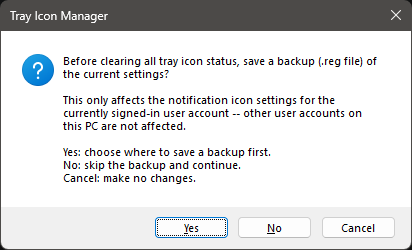
- Yes opens a save dialog for a
.regbackup that can later be double-clicked to restore the old settings. If you cancel the save dialog, you return to this prompt. - No skips the backup and continues.
- Cancel makes no changes.
Step 2: Confirm the reset
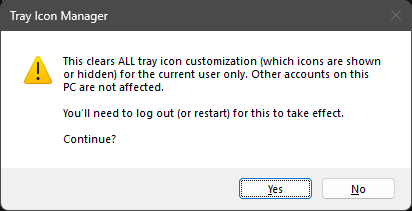
Choose No to leave everything as it is. The confirmation explains that the change applies to the current user and takes effect after signing out or restarting.
Step 3: Sign out when convenient
After clearing, a notification confirms the reset and offers to sign you out. Sign-out is not forced, so other apps can still prompt you to save open work. You can decline and sign out or restart later; the change takes effect at the next sign-in.
Language
The tray menu, notifications and dialogs are available in English, Spanish, French, German, Simplified Chinese and Japanese.
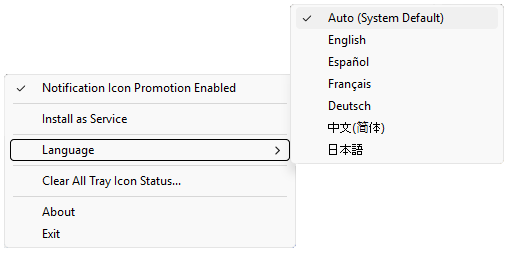
- Auto (System Default) follows the Windows display language and falls back to English if it is unsupported.
- Choosing a language applies it immediately, without a restart, and is remembered.
- Language names are displayed in their own script.
Translations other than English were machine-generated and have not been reviewed by native speakers. Corrections and requests for additional languages are welcome through GitHub.
About dialog
Choose About in the tray menu to view the application and version information.
How it works
Windows stores notification icon visibility preferences under HKCU\Control Panel\NotifyIconSettings. A newly registered icon has no preference yet, which is why it starts out hidden. Tray Icon Manager waits for changes to that registry key and, when an unconfigured icon appears, sets it to always show. It reacts to registry changes rather than polling on a timer.
The app's own settings are stored under HKCU\Software\TrayIconManager, including whether promotion is enabled and the selected language.
Command-line arguments
TrayIconManager.exe normally takes no arguments. The -service argument is used by the Windows Service Control Manager to launch service mode. Running the executable manually with that argument exits immediately because it was not started by the service manager.
Troubleshooting
- A new icon is still hidden
- Check that Notification Icon Promotion Enabled is checked and that the app or service is running. Icons you configured earlier are left alone; use Clear All Tray Icon Status... if you want to reset saved settings.
- The service does nothing after installation
- Sign out and back in, or restart. A newly registered per-user service starts at sign-in.
- The tray icon is not visible
- Look in the taskbar overflow area (the up arrow). You can drag the app icon onto the taskbar after it appears.
- A language looks wrong
- Choose another language from the tray menu, or select Auto to follow Windows' display language when supported.
License
Copyright © 2026 Rathinosk. Tray Icon Manager is licensed under CC BY-NC-SA 4.0. See the license text on GitHub.